

iPad Tips
How to Restart the iPad
In order to solve some common issues, the iPad may need to be restarted. To do this:
- Press and hold the Home Button and Power Button at the same time until you see the Apple Logo on the screen (about 10 seconds).
- The iPad will reboot to the home screen. Try opening an app and verify if the issue has been resolved.
No Sound from iPad
If sound isn't working in an app or there is no sound at all
- Close all open apps by tapping the Home button twice and swiping up all open apps. The screen will return to the home screen once all open apps have been swiped closed. Open an app to verify if sound is working
- Restart the iPad (see above - How to Restart the iPad)
If neither of those steps resolve the no sound issue, please contact us to schedule an appointment to swap devices.
App is Outdated or Missing
If you are missing an app or an app prompts that it need to be updated, please contact us. We will need the name of the iPad in order to service the iPad remotely.
The name can be found on the back of the iPad and begins with an abbreviated school name followed by 4 numbers. example: feri0412
Chromebook Tips
Performing a Hard Restart
If your Chromebook performance is slow or apps are unresponsive, a simple restart of the device might help.
To Perform a Restart
- Press and hold the Refresh and Power keys at the same time until the screen turns off.
- Release the keys and allow the Chromebook to power back on (about 10 seconds)
- If the Chromebook doesn't turn back on, close the lid, wait 5 seconds and open the lid.
*Keyboard image for grade 5-12 Chromebooks
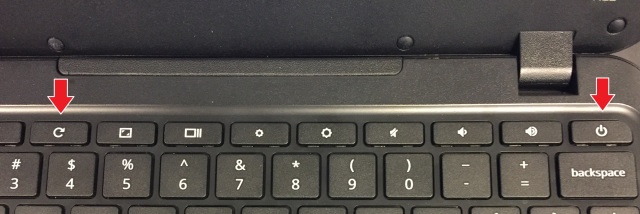
**Chromebooks used by 3rd and 4th grades: the power button is located on the left side of the Chromebook, just above the status light.
Chromebook Won't Turn On
If your Chromebook won't power on, try the following steps
- Perform a hard restart of the Chromebook (see above)
- Plug your Chromebook in using the correct charger and verify the battery is charging
- Solid Orange/Amber - Battery is charging
- Solid White - Battery charged
- No lights - Battery is not charging/device is off
- Plug in charger on the other side and verify battery isn't charging (This is only for Chromebooks with USB-C chargers.)
If the Chromebook still doesn't turn on or the battery isn't charging, please contact us to schedule an appointment to switch devices.
Keyboard Doesn't Work (Touch Screen Only)
If the physical keyboard stops responding on the Chromebook, try these steps:
- Flip the Chromebook between tablet mode and laptop mode 2-3 times. Try using the keyboard again while in normal laptop mode.
- Perform a hard restart of the Chromebook (see above)
If after trying both steps above and the keyboard still doesn't respond, please contact us to schedule an appointment to swap devices.


